Give a still image motion.
Upload a first frame and describe what should move. Create a short landscape or portrait video with MiniMax H3.
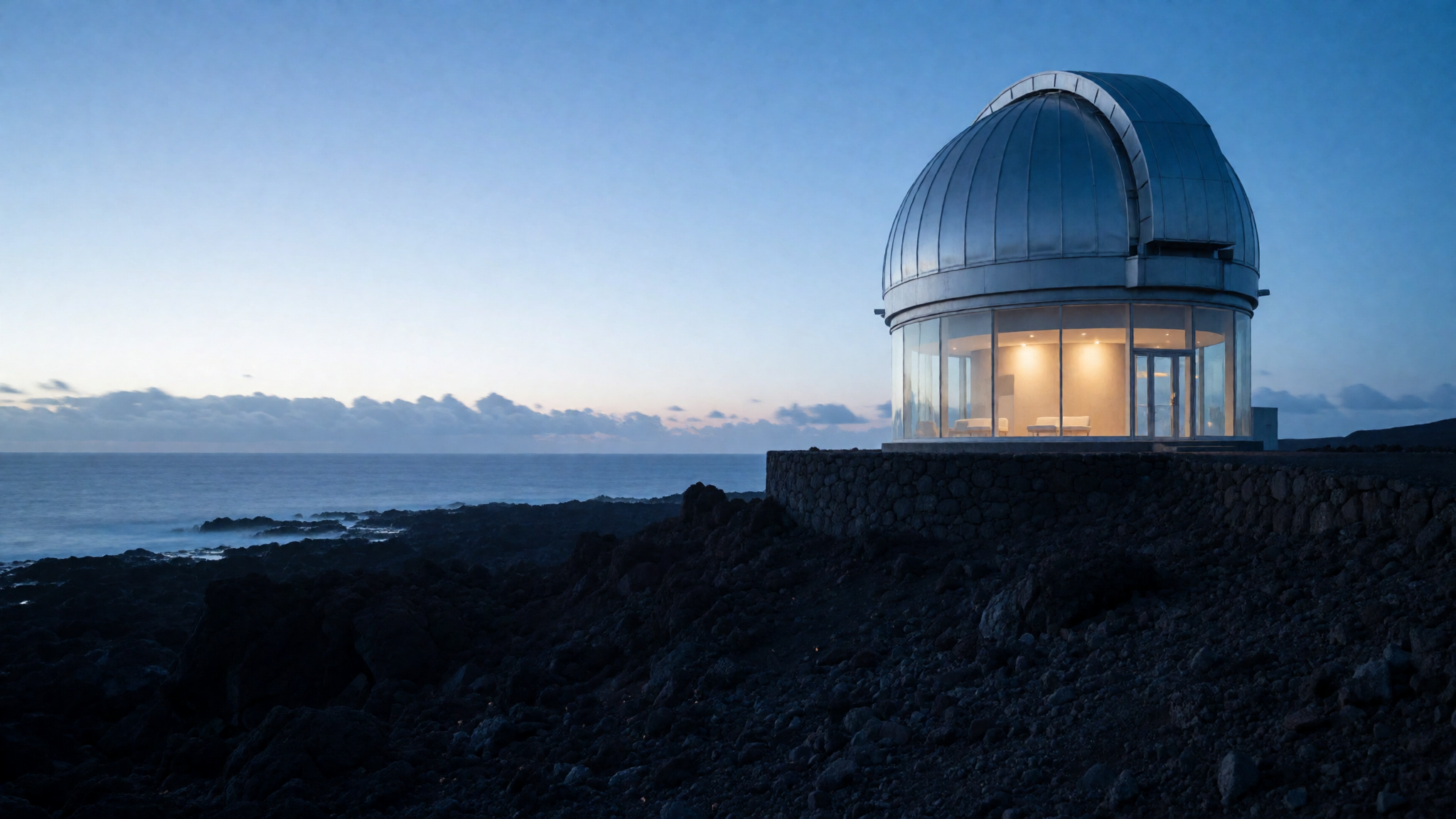
How to create it
Choose First frame
Open Create, select Video, then First frame under Input.
Upload and describe the movement
Add your image, choose the output orientation, and describe one camera movement or subject action.
Generate and review
Choose 5, 10 or 15 seconds, set Sound and quality, then check the displayed credit cost before submitting. Review and download the finished clip.
Using a product photo?
Start with a sharp image of one product against a simple background. Match the photo to your chosen orientation and try a slow camera move before asking for a large rotation. Review labels, proportions and material details before using the result in a listing.
Prompt idea
A slow, subtle camera push toward the product. Soft studio lighting. Keep the composition steady with no cuts.
A suggested starting point, not the prompt used for the sample above.
What to expect
- The image guides the opening; it does not lock every detail throughout the clip. Logos, text and product geometry can change.
- Use images you have permission to upload. This is generative video, not an exact 3D product renderer.
- Enhanced output increases resolution but cannot recover details the original generation got wrong. Waiting time varies with demand.